YouQR

QR Code Kaise Banaye: A Step-by-Step Hindi Guide

लिंक से QR कोड बनाने के लिए पहले वह पेज खोलें जो आप दूसरों को दिखाना चाहते हैं। उसका सार्वजनिक लिंक कॉपी करें, YouQR के जनरेटर में डालें और बना हुआ कोड डाउनलोड करें। अंत में दूसरे फोन से जांचें कि सही पेज खुल रहा है।

यह तरीका वेब लिंक के लिए है। WiFi का पासवर्ड सीधे फोन में भरने वाला कोड, भुगतान कोड या आधिकारिक टिकट अलग तरह की जानकारी इस्तेमाल कर सकते हैं। उन्हें सामान्य वेबसाइट लिंक के समान न मानें।
Phone held above a printed QR code card on a wooden table
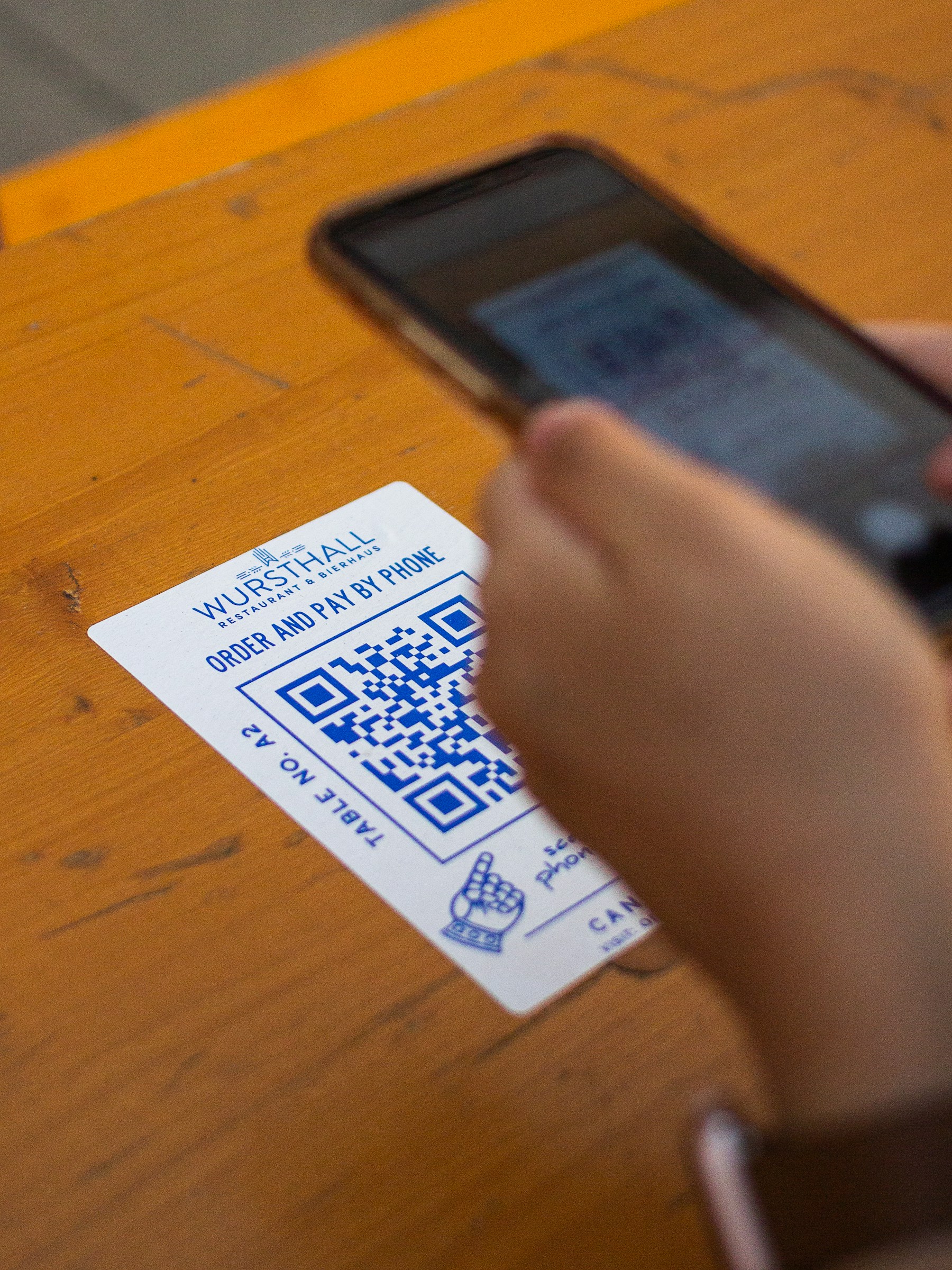
A printed QR card being scanned with a phone. Photo by Albert Hu on Unsplash.

1. पहले सही लिंक तैयार करें

उदाहरण के लिए, आप अपनी दुकान की सर्विस जानकारी ग्राहक तक पहुंचाना चाहते हैं। उस जानकारी वाला पेज खोलें और उसका लिंक कॉपी करें। अपना एडमिन या एडिट करने वाला लिंक ग्राहकों को न दें।

लिंक को ऐसे ब्राउजर में खोलकर देखें जहां आपका मालिक वाला अकाउंट लॉगिन न हो। अगर ग्राहक को पेज देखने की अनुमति नहीं है, तो QR बनाने से वह समस्या नहीं बदलेगी।

2. लिंक से कोड बनाएं

  1. YouQR का URL QR जनरेटर खोलें।
  2. पूरा लिंक डालें। शुरुआत का https:// और बाकी पता जांचें।
  3. कोड बनाएं और उपलब्ध डाउनलोड विकल्प देखें।
  4. अपने काम के अनुसार फाइल डाउनलोड करें। केवल छोटी प्रीव्यू तस्वीर का स्क्रीनशॉट लेने से बचें।
  5. कोड के पास साफ शब्द लिखें, जैसे “सर्विस जानकारी के लिए स्कैन करें।”

अगर निजी मैनेजमेंट या रिकवरी लिंक मिलता है, तो उसे सुरक्षित रखें। वह ग्राहक को दिखाने या कोड के नीचे प्रिंट करने वाला लिंक नहीं है।

3. पूरा अनुभव जांचें

सिर्फ कैमरे में पैटर्न पहचान में आना काफी नहीं है। लिंक खोलें और देखें कि जानकारी पढ़ी जा सकती है। प्रिंट करना है, तो असली आकार में एक कॉपी छापकर जांचें। कोड को खींचकर चौड़ा न करें और उसका खाली बाहरी हिस्सा न काटें।

इस उदाहरण में दुकान ने एक जानकारी वाला पेज साझा किया है। उसने कोई ग्राहक ऐप, भुगतान सेवा या AI सहायक अपने आप नहीं बनाया। जब आपको कई अलग लिंक के लिए कोड चाहिए हों, तो YouQR का bulk QR टूल देखें और पहले छोटी सूची से प्रक्रिया जांचें।

अक्सर पूछे जाने वाले सवाल

क्या कोड बनाने से वेबसाइट भी बन जाती है?

इस लिंक वाले तरीके में नहीं। कोड तैयार पेज तक पहुंचाता है; पेज की जानकारी पहले उपलब्ध होनी चाहिए।

क्या मैं PDF का लिंक डाल सकता हूं?

सार्वजनिक, खुलने योग्य वेब लिंक डाल सकते हैं। पहले जांचें कि दूसरे व्यक्ति को दस्तावेज देखने की अनुमति है।

प्रिंट के बाद लिंक बदल सकता हूं?

यह चुने गए कोड और मैनेजमेंट विकल्प पर निर्भर है। छपाई से पहले static और dynamic कोड का अंतर समझ लें।

क्या हर प्रिंट कॉपी के लिए नया कोड बनाना होगा?

एक ही जानकारी तक पहुंचाना है, तो उसी कोड की कई कॉपियां छाप सकते हैं। अलग जानकारी वाले लिंक के लिए उपयुक्त अलग कोड चुनें।


You may also like reading

QR Code Kya Hota Hai? Hindi Meaning and Everyday Examples

QR Code Kya Hota Hai? Hindi Meaning and Everyday Examples

QR कोड छोटे चौकोर खानों से बना एक पैटर्न है, जिसमें जानकारी रखी जा सकती है। फोन का कैमरा या सही स्कैनर उस पैटर्न को पढ़कर लिंक, टेक्स्ट या किसी खास काम की जानकारी पहचानता है। QR का पूरा नाम Quick Response है। आसान उदाहरण लें: किसी मिक्सर के डिब्बे पर QR कोड लगा है। उसे स्कैन करने पर मिक्सर की सफाई के निर्देश खुलते हैं। कोड ने फोन को उस पेज का पता दिया; पूरे निर्देश जरूरी नहीं कि कोड के भीतर रखे हो

Read more →
QR Code Stickers and Labels: From Design to Placement

QR Code Stickers and Labels: From Design to Placement

A QR code sticker adds a scannable destination to something you already have: packaging, a counter display, a product guide, or a storage label. YouQR supplies the digital code; printing and applying the physical sticker are separate steps. Start by deciding what a person should achieve after scanning. A sticker on a product box might open setup instructions. A sticker at a shop counter might open

Read more →
QR Code Sticker Size: Choose, Print and Test Yours

QR Code Sticker Size: Choose, Print and Test Yours

The right QR code sticker size depends on how people will scan it. A handheld product label and a notice viewed across a counter need different treatment. Choose the size around the use, then test a finished sticker on the intended surface. Also distinguish the sticker's total dimensions from the space used by the QR pattern. Your label needs room for the pattern, its clear margin, and any caption

Read more →
QR Code Not Scanning? Check the Image, Link and Destination

QR Code Not Scanning? Check the Image, Link and Destination

When someone says a QR code is not working, first ask what happens on their phone. Does the camera fail to recognise the pattern? Does it display a link that will not open? Or does the page open and deny access? Those are different problems. Finding the failing step helps you make a useful change instead of reprinting a working code or repeatedly editing a destination that the camera cannot read.

Read more →
How to Print a QR Code That Scans Clearly

How to Print a QR Code That Scans Clearly

To print a QR code, download a suitable image, place it in your artwork without stretching or cropping it, and test a real printed copy. The file can be correct while the final print still needs adjustments. Think of the test print as part of making the code. A code viewed on a bright laptop screen has not yet been checked on a small label, a curved bottle, or a poster behind glass. Use a test pri

Read more →
Bulk QR Codes from Excel: Prepare, Paste and Download

Bulk QR Codes from Excel: Prepare, Paste and Download

If your QR destinations are already in Excel, you can use that sheet to prepare a batch. Keep one complete URL in each row, copy the URL values, and paste them into YouQR's bulk generator. This is a copy-and-paste workflow. It does not upload an Excel workbook or turn a spreadsheet formula into a native QR-generation feature. Check spreadsheet rows and destination links before preparing a batch of

Read more →