YouQR

QR Code Sticker Size: Choose, Print and Test Yours

The right QR code sticker size depends on how people will scan it. A handheld product label and a notice viewed across a counter need different treatment. Choose the size around the use, then test a finished sticker on the intended surface.

Also distinguish the sticker's total dimensions from the space used by the QR pattern. Your label needs room for the pattern, its clear margin, and any caption or branding outside that margin.
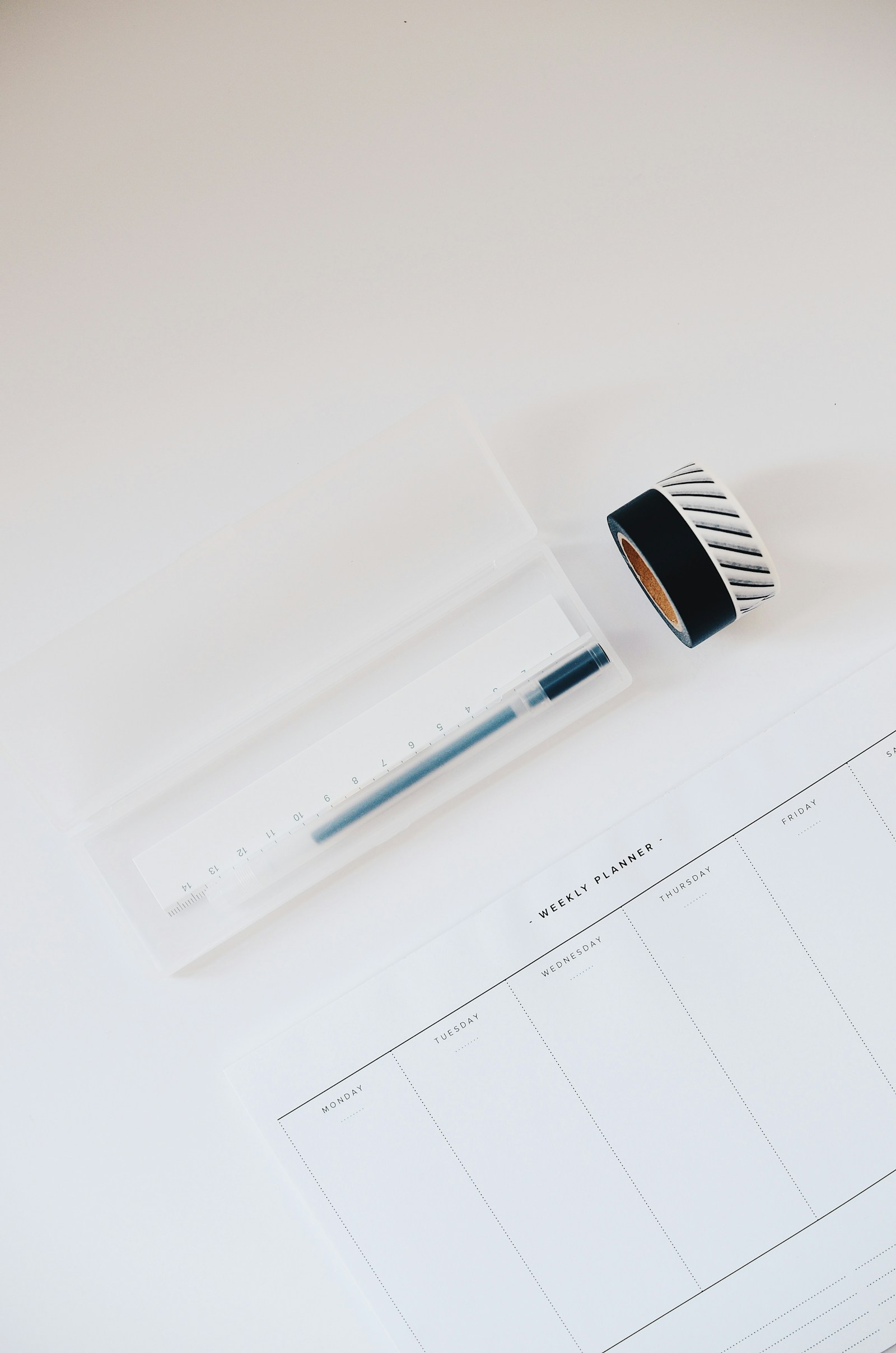
A ruler and adhesive tapes arranged on a light desk
Measure the available surface before choosing a QR sticker's printed size. Photo by Marissa Grootes on Unsplash.

Work backwards from the scan

Ask where the reader will stand or hold the item. Can they bring the code closer? Will the label sit on a curved container? Is there glare from a window or protective cover?

For example, a small appliance maker might place a support QR on the underside of a device. The customer may have to move the device just to see it. A more accessible position can help more than squeezing a smaller code into the original spot.

Allow for the clear margin

A standard QR requires a clear border four modules wide on every side. A module is one small cell in the pattern. DENSO WAVE's sizing guidance shows how the symbol and margin together determine the space needed.

Use this layout calculation: pattern width + both clear side margins = the QR block width. A round sticker must contain that entire square block; the diameter is not all available for the code. Keep a caption outside the QR block, rather than counting it as part of the clear margin.

Here is a hypothetical calculation, not a minimum-size recommendation. Start with a pattern 25 modules wide. Add four clear modules on each side: 25 + 4 + 4 = 33 modules. If the chosen layout uses 0.8 mm per module, the complete QR block is 33 × 0.8 = 26.4 mm wide. The sticker may need additional space for its shape, caption and printing tolerances. These selected numbers do not establish a reliable scan distance; the actual printed design still needs testing.

Compare sample sizes before ordering

  1. Create the destination code with YouQR's QR generator.
  2. Place it in two or three candidate sticker layouts without distorting it.
  3. Print the candidates at their actual dimensions.
  4. Apply them to the intended object and scan from realistic positions.
  5. Keep the design that remains easy to read, including its caption.

Mark the dimensions on your proof so a printer or colleague does not unintentionally shrink the approved layout. Recheck after a change in material, finish, logo, or destination encoding.

Frequently asked questions

Does a larger sticker always solve scanning problems?

It can help, but it will not repair a wrong destination, restricted page, badly distorted pattern, or missing margin.

Can I use a round sticker?

Yes, provided the complete square QR block and its clear margin fit inside the circle. Test the real label.

Are pixels and millimetres interchangeable?

No. Pixels describe the raster image; printed dimensions also depend on placement and print resolution. Check both the source file and the physical proof.

Can I put the logo beside the code instead of inside it?

Yes. Keeping branding outside the code's clear margin is a useful layout option. Our QR design guide covers branding choices.
You may also like reading

Smart Label QR Codes: Connect a Product to Useful Information

Smart Label QR Codes: Connect a Product to Useful Information

A smart label QR code links a physical label to digital information. That might be a product guide, a document, or a support experience. Calling a label “smart” does not tell you what it actually does, so start with the action a scan should enable. Product tags illustrate the physical label behind a digital information link. Photo by Haberdoedas on Unsplash . For example, an equipment supplier cou

Read more →
QR Codes on Food Packaging: What Information Should You Share?

QR Codes on Food Packaging: What Information Should You Share?

A QR code on food packaging can open a maintained page with information about the product. A useful starting point is the question a customer might ask after picking up the pack: which product is this, where can I read the approved information, and how do I contact the producer? Packaged food provides context for links to clear product information. Photo by Saravanan Narayanan on Unsplash . Imagin

Read more →
QR Codes on Clothing Labels: Share Care and Product Information

QR Codes on Clothing Labels: Share Care and Product Information

A QR code on a clothing label can open a page about the garment: care instructions, fabric details, size information, or a contact route. The useful part is choosing information someone needs while holding that particular item. Clothing labels provide a familiar setting for product-information links. Photo by TuanAnh Blue on Unsplash . Consider an illustrative linen-shirt brand. Its hangtag could

Read more →
QR Code Stickers and Labels: From Design to Placement

QR Code Stickers and Labels: From Design to Placement

A QR code sticker adds a scannable destination to something you already have: packaging, a counter display, a product guide, or a storage label. YouQR supplies the digital code; printing and applying the physical sticker are separate steps. Start by deciding what a person should achieve after scanning. A sticker on a product box might open setup instructions. A sticker at a shop counter might open

Read more →
QR Code Not Scanning? Check the Image, Link and Destination

QR Code Not Scanning? Check the Image, Link and Destination

When someone says a QR code is not working, first ask what happens on their phone. Does the camera fail to recognise the pattern? Does it display a link that will not open? Or does the page open and deny access? Those are different problems. Finding the failing step helps you make a useful change instead of reprinting a working code or repeatedly editing a destination that the camera cannot read.

Read more →
How to Print a QR Code That Scans Clearly

How to Print a QR Code That Scans Clearly

To print a QR code, download a suitable image, place it in your artwork without stretching or cropping it, and test a real printed copy. The file can be correct while the final print still needs adjustments. Think of the test print as part of making the code. A code viewed on a bright laptop screen has not yet been checked on a small label, a curved bottle, or a poster behind glass. Use a test pri

Read more →