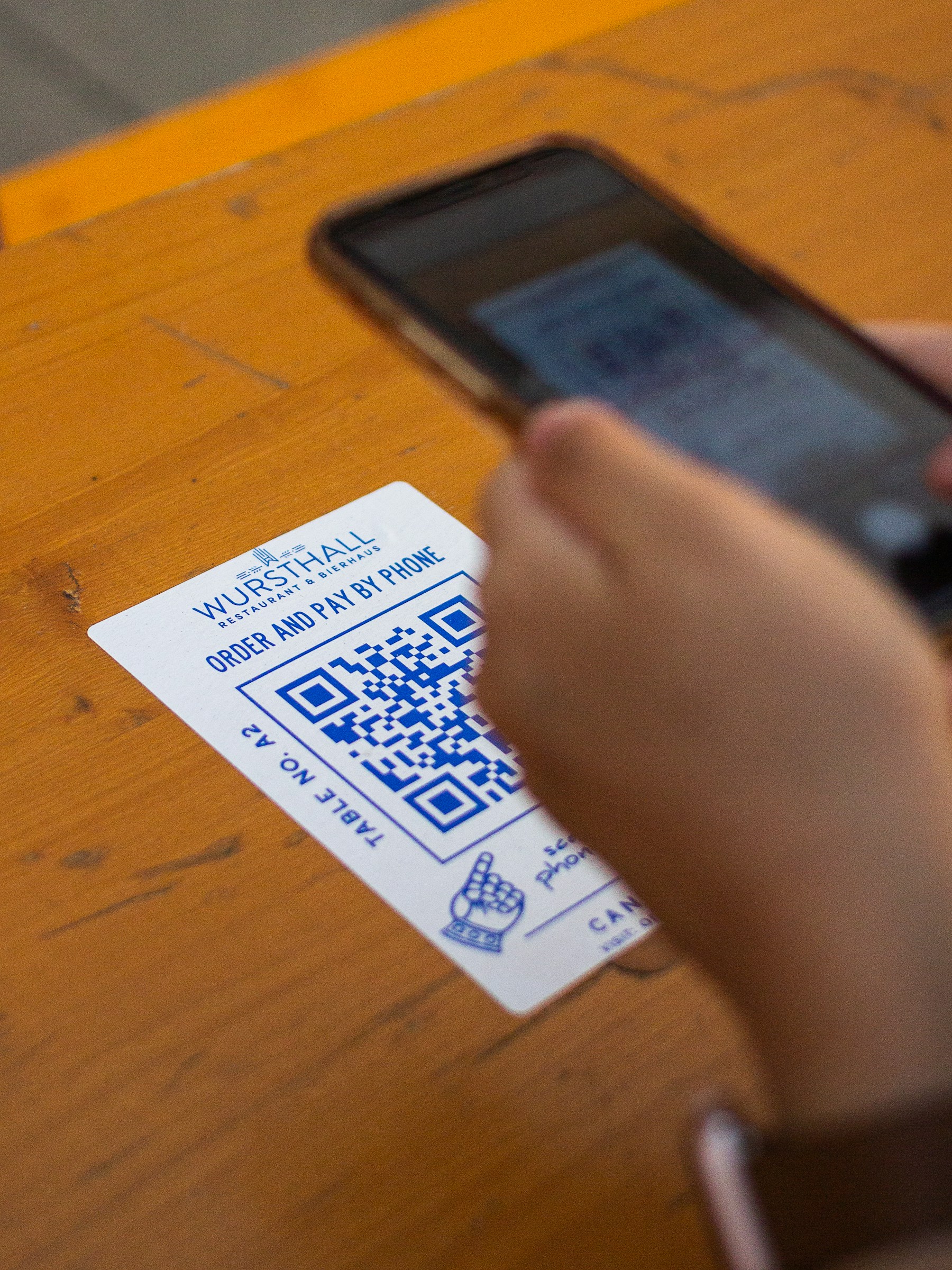
To create a QR code for Google Forms, copy the form's responder link and turn that URL into a code. The scan opens the form; people still need to complete and submit it.
This can suit a feedback card or enquiry poster. For example, a showroom could invite visitors to request a product brochure through a short form. The QR should open the questions the visitor needs, without sending them to an editing screen.

Copy the responder link, not the editor link
Check the form's publication and responder-access settings first. An unpublished form is not available to responders, and account or organisation restrictions may prevent your intended audience from opening it. Use Google's publishing and sharing instructions to obtain the responder link and choose appropriate access.
Do not assume that being able to open the form yourself means a customer can. You may be signed in as its owner. Test the responder link in a signed-out browser or with a permitted test account.
Make the QR code
- Prepare and publish the form for the audience you intend.
- Copy the responder link.
- Paste it into YouQR's URL QR code generator.
- Download the result and add a plain caption, such as “Scan to request a brochure.”
- Scan the final layout and submit a clearly labelled test response.
Check that the response reaches the form's response area. A QR scan is not a submission, and generating a QR does not automatically connect form responses to YouQR's leads dashboard.
Keep the form suitable for a phone
Ask only what you need for the task. Explain why you need contact details and what happens after submission. A feedback form can often work without a phone number; a callback request needs a way to reach the person. Follow your organisation's applicable consent and privacy requirements.
Print a short, readable alternative link when practical. Keep a note of which form belongs to each poster. If your destination may change, our static and dynamic QR explanation helps you choose a suitable approach before printing.
Frequently asked questions
Do I need a special Google Forms QR generator?
A URL QR generator can encode the responder link. The form still controls access and submissions.
Can visitors respond without signing in?
That depends on your form's questions and access settings. Test the intended experience rather than promising anonymous access.
Can I edit the questions after printing the code?
If the responder URL stays the same, the code still opens that URL. Recheck the form after material edits.
What if the QR opens a permission error?
Check the responder link and access settings. Making the QR image larger will not change who is allowed to open the form.